AirPods are designed to make wireless listening simple, but pairing them for the first time can sometimes feel confusing—especially if you’re switching between an iPhone, Android phone, Mac, or another Bluetooth device.
The good news? Learning how to pair AirPods usually takes only a few minutes. Whether you have standard AirPods, AirPods Pro, AirPods 4, or AirPods Max, this guide walks you through the process step by step.
We’ll also explain how to pair AirPods to Android, what to do when your AirPods won’t connect, and answer some of the most common questions users have.
Also Read:- How to Delete All Searches and My Activity History: A Complete Step-by-Step Guide
What You Need Before Pairing AirPods
Before you start, make sure:
- Your AirPods have enough battery.
- Both earbuds are inside the charging case when applicable.
- Bluetooth is turned on.
- Your phone, tablet, or computer is reasonably close to the AirPods.
- Your device is running up-to-date software when possible.
For Apple devices, Apple recommends keeping the device software updated before pairing.
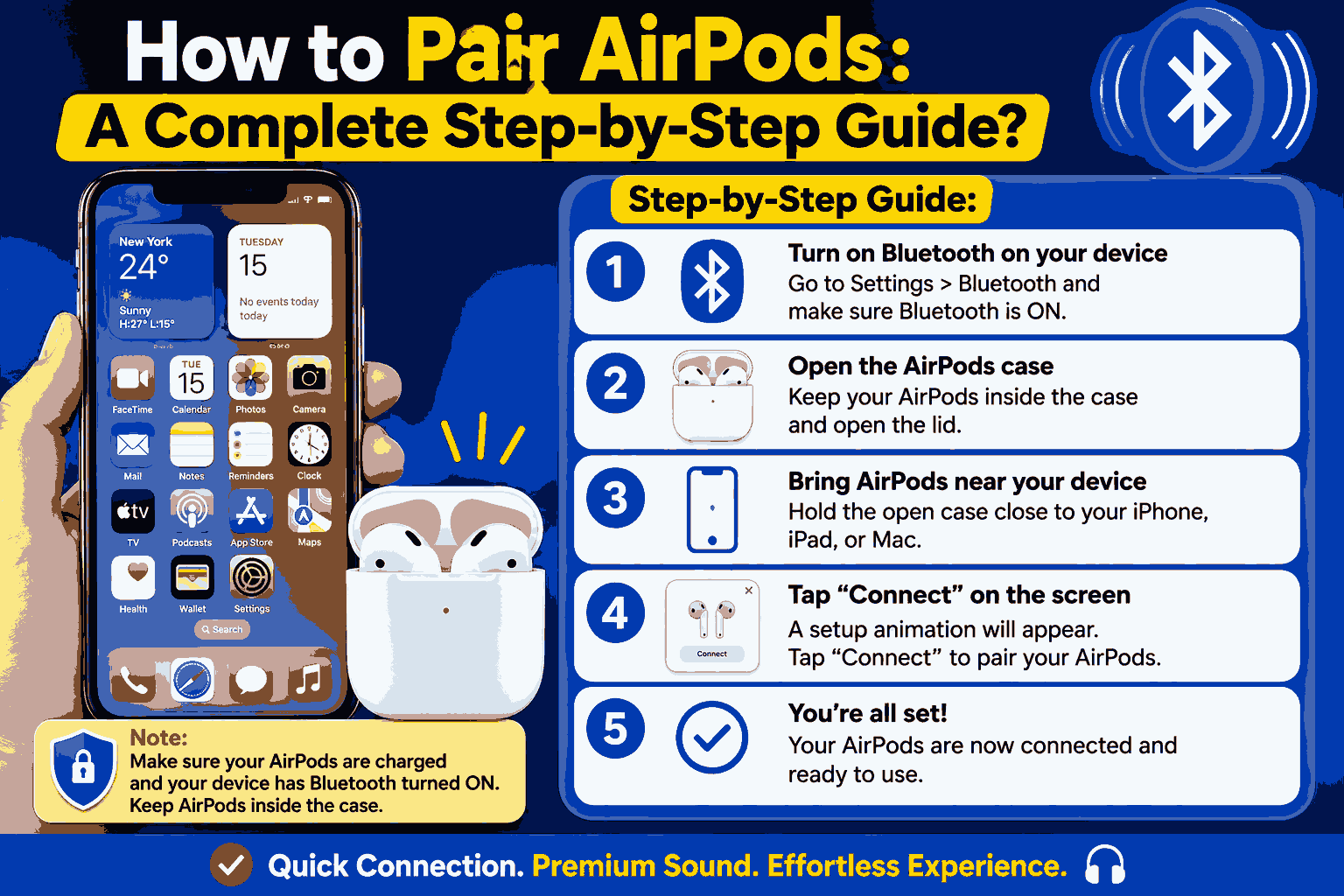
How to Pair AirPods to an iPhone
Pairing AirPods with an iPhone is usually the easiest process because AirPods are designed to work seamlessly with Apple’s ecosystem.
Step 1: Turn On Bluetooth
Open Settings on your iPhone and select Bluetooth. Make sure Bluetooth is switched on.
Step 2: Open the AirPods Case
Place both AirPods inside their charging case and open the lid.
Step 3: Bring the Case Near Your iPhone
Hold the open AirPods case close to your iPhone. A setup animation should appear on the screen.
Step 4: Follow the On-Screen Instructions
Tap the option to connect or pair your AirPods and follow the instructions displayed on your iPhone.
Once setup is complete, your AirPods should be ready to use for music, calls, videos, and other audio. Apple also notes that AirPods can automatically connect with other compatible Apple devices signed into the same Apple Account.
How to Pair AirPods Manually
Sometimes the automatic setup animation doesn’t appear. Don’t worry—you can still connect your AirPods manually.
- Open the AirPods charging case with the earbuds inside.
- Put the AirPods into pairing mode.
- On your device, open Settings > Bluetooth.
- Look for your AirPods in the available devices list.
- Select your AirPods.
- Wait for the connection to complete.
For newer AirPods models such as AirPods 4 and AirPods Pro 3, Apple uses a double-tap on the front of the case to enter pairing mode. Other compatible AirPods models use the setup button on the back of the case.
How to Pair AirPods to Android
Wondering how to pair AirPods to Android? Yes, AirPods can work with Android phones through Bluetooth.
While you won’t get every Apple-specific feature, you can still use AirPods for listening to music, watching videos, and making phone calls. Apple confirms that AirPods can be used as a Bluetooth headset with non-Apple devices, although features such as Siri aren’t available.
Step 1: Open Bluetooth Settings
On your Android phone, open Settings and go to Bluetooth. On many Android phones, you can also swipe down from the top of the screen and press and hold the Bluetooth icon.
Step 2: Turn Bluetooth On
Make sure Bluetooth is enabled.
Step 3: Open the AirPods Case
Place the AirPods inside the charging case and open the lid.
Step 4: Put AirPods Into Pairing Mode
For many AirPods models, press and hold the setup button on the back of the case until the status light flashes white.
For AirPods 4 and AirPods Pro 3, Apple says to double-tap the front of the case until the status light flashes white.
Step 5: Select Your AirPods
On your Android phone, tap Pair new device if necessary. Find your AirPods under the available Bluetooth devices and tap their name.
Step 6: Confirm the Connection
Follow any instructions that appear on your Android phone. Once connected, you can start using your AirPods.
Google also confirms that Android devices can connect to AirPods through Bluetooth and recommends having the AirPods case charged before starting the process.
How to Pair AirPods With a Mac
Connecting AirPods to a Mac is also straightforward.
- Open System Settings on your Mac.
- Select Bluetooth.
- Make sure Bluetooth is turned on.
- Put your AirPods into pairing mode.
- Look for your AirPods under nearby Bluetooth devices.
- Click Connect.
If you’ve already paired your AirPods with an iPhone and your Mac uses the same Apple Account, the AirPods may connect automatically.
How to Put AirPods in Pairing Mode
Pairing mode allows your AirPods to be discovered by a phone, computer, or other Bluetooth device.
The method depends on your AirPods model:
- AirPods 1, 2, and 3: Open the case and press and hold the setup button on the back until the light flashes white.
- AirPods Pro 1 and 2: Press and hold the setup button on the back until the light flashes white.
- AirPods 4: Open the case and double-tap the front until the status light flashes white.
- AirPods Pro 3: Open the case and double-tap the front until the status light flashes white.
- AirPods Max: Press and hold the appropriate listening-mode/noise-control button until the status light flashes white.
The exact pairing procedure can vary by AirPods generation, so identifying your model can be helpful if the usual method doesn’t work.
Also Read:– How to Clear DNS Cache in Chrome: Multiple Methods You Can Try?
What If Your AirPods Won’t Pair?
If your AirPods aren’t connecting, there are several simple fixes worth trying.
1. Check the Battery
Make sure your AirPods and charging case have enough charge. A very low battery can prevent a successful connection.
2. Turn Bluetooth Off and On
Switch Bluetooth off on your device, wait a few seconds, and turn it back on.
3. Keep the AirPods Close
Move your AirPods and their charging case close to the device you’re trying to connect.
4. Put the AirPods Back Into Pairing Mode
Close the charging case, wait around 15 seconds, open it again, and put the AirPods back into pairing mode. Apple recommends this as part of its troubleshooting process.
5. Check Whether the AirPods Are Connected to Another Device
If your AirPods are already connected to another nearby phone, tablet, or computer, they may not immediately appear on your new device.
Disconnect them from the other device and try pairing again.
6. Update Your Device
Check for available software updates on your iPhone, iPad, Mac, or Android device.
7. Reset the AirPods
If none of the basic solutions work, resetting the AirPods can be the next step. Apple recommends resetting them when other connection troubleshooting steps don’t resolve the issue.
Can You Use AirPods With Android?
Absolutely. AirPods work with Android phones as Bluetooth headphones.
However, the experience isn’t exactly the same as using AirPods with an iPhone. Some Apple-specific features aren’t available on Android—for example, Siri isn’t supported when AirPods are connected to a non-Apple device.
For basic wireless audio and calls, though, AirPods can work perfectly well with an Android phone.
Tips for a Better AirPods Connection
Here are a few simple habits that can make pairing and reconnecting easier:
- Keep your AirPods charged.
- Keep Bluetooth enabled when you want automatic reconnection.
- Keep your phone and AirPods reasonably close together.
- Keep your device software updated.
- Remove old or unwanted Bluetooth pairings if your device has trouble finding the AirPods.
- If your AirPods suddenly stop connecting, place them back in the case and try pairing again.
Final Thoughts
Learning how to pair AirPods is much easier once you know the basic Bluetooth process. With an iPhone, the connection is usually almost automatic. With Android, you simply need to enable Bluetooth, put the AirPods into pairing mode, and select them from the available devices.
If you’re specifically searching for how to pair AirPods to Android, remember that you don’t need an iPhone to get started. AirPods can function as Bluetooth earbuds on Android, although some Apple-exclusive features won’t be available.
So, whether you’re setting up a brand-new pair or reconnecting an old one, these steps should get you listening again in just a few minutes.
Frequently Asked Questions
Open the AirPods case with the earbuds inside, enable Bluetooth on your device, and put the AirPods into pairing mode. Then select the AirPods from your device’s Bluetooth list. On an iPhone, you may also see an automatic setup animation.
You don’t need an iPhone. Turn on Bluetooth on your Android phone, open the AirPods case, put the AirPods into pairing mode, and select them from the available Bluetooth devices.
First, make sure Bluetooth is enabled and the AirPods are in pairing mode. Also check that the AirPods are charged and close to your device. If they still don’t appear, restart Bluetooth and try the pairing process again.
Yes. Samsung phones use Bluetooth, so AirPods can be paired with them just like other compatible Bluetooth headphones. Some Apple-exclusive features may not be available.
Yes. AirPods can be connected to compatible Windows computers through Bluetooth. Put the AirPods into pairing mode and select them from the computer’s Bluetooth device list.
Yes. AirPods can be used with Android phones, Macs, Windows PCs, and other compatible Bluetooth devices. However, some features are designed specifically for Apple’s ecosystem.
Possible causes include low battery, Bluetooth interference, outdated software, or another device attempting to connect. Start by charging the AirPods, keeping them close to your device, and reconnecting them.