Have you ever searched for something on Google and later wondered, “Can I remove that search completely?” Whether you’re cleaning up an old account, protecting your privacy, or simply want a fresh start, deleting your Google search and activity history is relatively simple.
Google’s My Activity page lets you review and manage searches, websites you’ve visited, videos you’ve watched, and other activity saved to your Google Account. You can delete individual items, remove activity from a specific period, or erase everything at once.
In this guide, we’ll explain how to delete all searches and My Activity history, how to set your account to delete my activity automatically, and what you should know before removing your data.
Also Read:- How to Clear DNS Cache in Chrome on Android & iPhone (2026)
What Is Google My Activity?
Google My Activity is a central place where you can review activity associated with your Google Account. Depending on your settings, it can include Google searches, websites visited, videos watched, and activity from various Google products and services.
It is important to understand that My Activity is not exactly the same as your browser history. Even after you delete activity from your Google Account, your browser may still have locally stored browsing history.
So, if your goal is complete cleanup, you may need to clear both your Google Account activity and your browser history.
Why Should You Delete Your Search and Activity History?
There are several good reasons to manage your activity history:
- Privacy: You may not want old searches associated with your account.
- Shared devices: Removing history can help prevent other people using your device from seeing your searches.
- Account cleanup: Deleting old activity can make your history easier to manage.
- Personalization control: Saved activity can influence personalized experiences, recommendations, and search results.
- Automatic privacy management: You can configure Google to delete older activity automatically.
Now let’s look at the different ways to remove your history.
How to Delete All Searches From Google My Activity
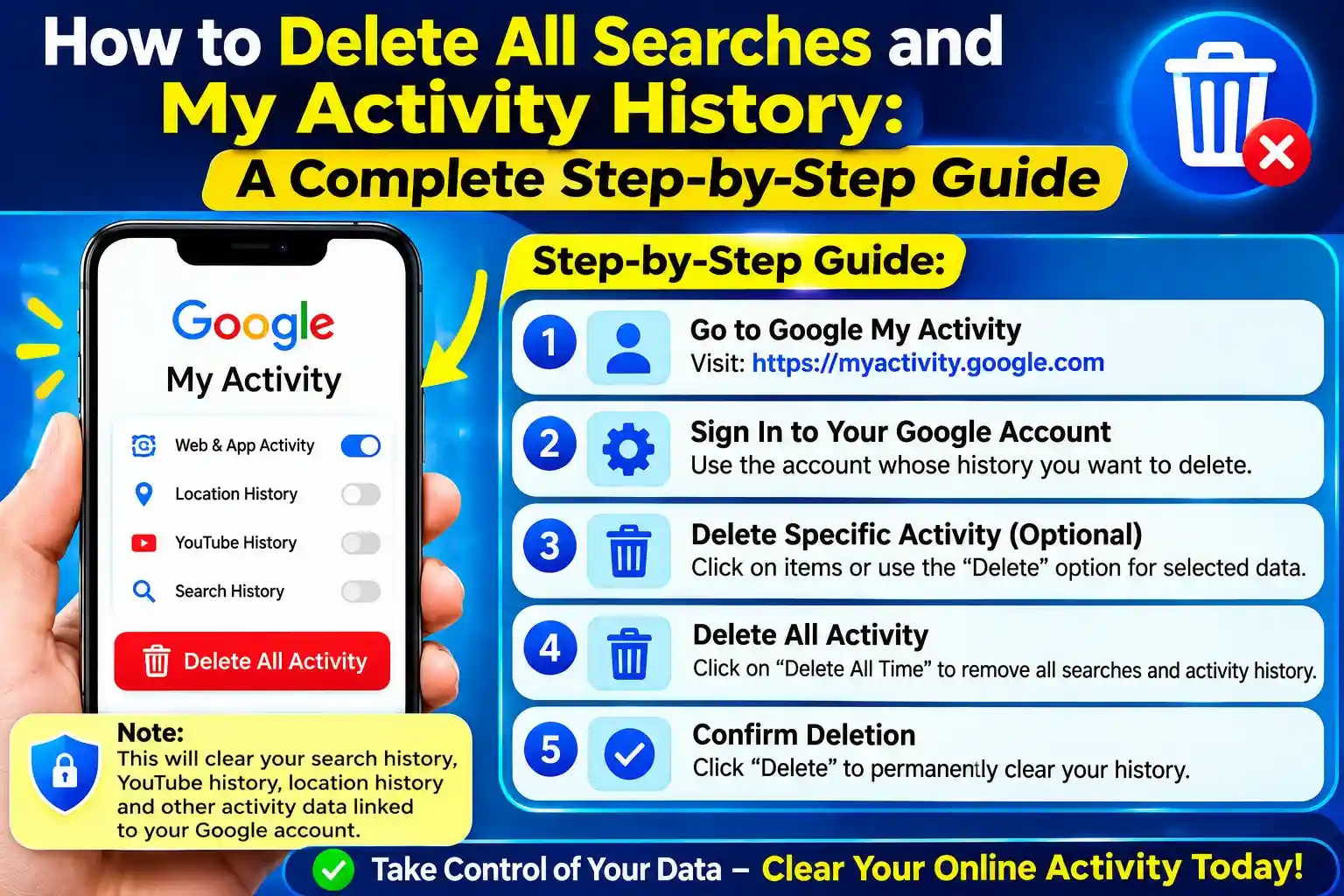
If you want to delete all searches my activity has stored in your Google Account, follow these steps.
Step 1: Open Google My Activity
Go to Google’s My Activity page and sign in to the Google Account whose history you want to manage.
You can access Google My Activity here:
Once you’re signed in, you’ll see activity associated with your account.
Step 2: Find the Delete Option
Look for the Delete option on the My Activity page. Depending on Google’s current interface, the exact placement or wording may vary.
Step 3: Select “All time.”
Choose the option that allows you to delete activity for All time if you want to remove your entire available activity history rather than just recent searches.
Step 4: Review What Will Be Deleted
Google may show you the types of activity included in the deletion. Review the information carefully before continuing.
Step 5: Confirm the Deletion
Confirm the action to remove the selected activity.
Remember that deleted search history cannot simply be restored from My Activity. Google says deletion begins by removing activity from view and then proceeds through its deletion process. Certain information may still be retained for limited legal or business purposes.
How to Delete Individual Searches?
You don’t always have to erase everything.
If you only want to remove a particular search:
- Open My Activity.
- Find the search you want to remove.
- Select the delete option for that activity.
- Confirm the deletion.
You can also search or filter your activity to find specific items more quickly. Google allows activity to be filtered by factors such as date, product, or keyword.
This option is useful when you want to keep most of your history but remove a few private or unwanted searches.
How to Delete My Activity From a Specific Date Range?
Sometimes you may want to remove activity from a particular period instead of deleting everything.
For example, you could remove activity from the previous month without touching older records.
Generally:
- Open My Activity.
- Use the date or search filters.
- Select the desired time period.
- Review the results.
- Choose the delete option.
- Confirm your choice.
This is a practical approach if you want more control over your history rather than performing a complete deletion of your activity.
How to Delete My Activity Automatically?
If you don’t want to repeatedly clean up your history manually, Google provides an auto-delete feature.
Here’s how to delete my activity automatically:
- Open your Google Account.
- Go to Data & privacy.
- Find your activity or history settings.
- Select the relevant activity setting.
- Choose Auto-delete.
- Select the available retention period.
- Follow the prompts to save your choice.
Google currently provides auto-delete options of 3 months, 18 months, or 36 months for applicable activity.
This means you don’t have to remember to manually clean your account every few months.
Which Auto-Delete Period Should You Choose?
Your choice depends on how much history you want Google to retain.
3 months:
Best if privacy is your top priority and you don’t need older activity for recommendations or convenience.
18 months:
A middle-ground option if you want some personalization while regularly removing older data.
36 months:
Useful if you prefer keeping a longer activity history but still want older information removed automatically.
How to Delete All My Activity History?
If your goal is my activity history delete all, remember that My Activity can contain more than just Google Search queries.
Depending on your account settings, it can include things such as searches, websites, videos, and activity from Google services.
To delete everything available through My Activity:
- Open Google My Activity.
- Choose the delete option.
- Select all time.
- Review the activity categories.
- Confirm the deletion.
If you have several Google Accounts, check each account separately. Activity is associated with the account in which it was saved.
Also Read:- Types of Firewalls in Computer Networks and How to Choose the Right One?
Don’t Forget Your Browser History
Here’s an important point many people miss.
Deleting your Google Account activity does not necessarily delete your browser history.
For example, Chrome may still have locally stored browsing history, cookies, cached information, or other browsing data. Google specifically notes that your browser can retain history even when Search history has been deleted from your Google Account.
So, if you’re trying to perform a complete privacy cleanup, check your browser’s history settings as well.
Can You Delete Only Your Recent Searches?
Yes. Google also provides a quick way to delete recent Search history. Google says the Google app and Google.com can offer a last 15 minutes’ deletion option when you’re signed in.
This can be handy if you searched for something by mistake or simply want to remove a recent search without changing your older history.
What Happens After You Delete My Activity?
When you delete activity, Google begins a process to remove it from its products and systems. The activity is first removed from view and may no longer be used to personalize your Google experience, followed by a process designed to remove the data from Google’s storage systems.
However, deletion does not mean every copy of every piece of information instantly disappears in every circumstance. Google notes that some information may be retained for limited purposes, such as legal or business requirements.
What If Deleted Activity Still Appears?
If something you deleted appears temporarily on another device, don’t panic.
One possible reason is that the device hasn’t synchronized with Google’s servers yet. Google recommends ensuring the device is connected to the internet. Clearing browser cache and cookies may also help when dealing with locally displayed information.
Also remember to check whether the information you’re seeing is actually stored in your browser or another Google service rather than My Activity.
My Activity vs. Browser History: What’s the Difference?
| Google My Activity | Browser History |
| Saved to your Google Account | Usually stored by the browser/device |
| Can include Google searches | Records websites/pages visited |
| Managed through Google Account settings | Managed through browser settings |
| Can have automatic deletion options | Depends on browser settings |
| May sync across signed-in devices | Usually associated with the browser/device |
For better privacy, consider managing both.
Tips to Keep Your Search History More Private
Deleting old history is useful, but preventing unnecessary history from accumulating can be even better.
1. Review Your Activity Settings Regularly
Check your Google Account’s activity controls from time to time. You can decide what activity Google saves and manage deletion settings.
2. Turn On Auto-Delete
If you don’t want to manually perform a my activity delete every few months, choose an automatic deletion period that suits your privacy preferences.
3. Use Private Browsing When Appropriate
Private or Incognito browsing can prevent your browser from saving certain local browsing information. However, private browsing does not make you completely anonymous online, and signing into a Google Account can still result in activity being saved according to your account settings.
4. Protect Access to Your Google Account
If someone else can access your Google Account, they may be able to view your activity. Use a strong password and Google’s available security features to protect the account.
Final Thoughts
It’s not difficult to manage your online history. Google My Activity provides a simple option to remove individual searches, periods of activity or all of your activity.
If you choose to delete my activity automatically when I’m not using my account, you’ll save time and have less old information stored in your account. If you want to delete my activity history, be sure to clear your browser history and all other Google services, too.
The first thing to be noted is that you need to know what you are removing before confirming the deletion. If you delete an activity, it can no longer be recovered; be sure to check your settings and select the activity deletion option that is appropriate for you.
Takeaway: Check and regularly review your Google My Activity, and apply automatic deletion when it’s appropriate; and know that your Google Account activity is separate from your browser’s history.
Frequently Asked Questions
Open Google My Activity, choose the delete option, select All time, review the activity, and confirm the deletion. This removes the activity selected for deletion from your Google Account.
Yes. Google provides an auto-delete feature that can automatically remove applicable activity older than 3, 18, or 36 months.
No, not necessarily. Your browser may maintain its own history and browsing data, so you may need to clear that separately.
Yes. My Activity allows you to delete individual activity items instead of deleting your entire history.
You can delete the activity available through My Activity by selecting an all-time deletion option. However, some Google products and services can store information in places outside My Activity, so a complete privacy review may require checking those services separately.
There is no single correct answer. If privacy is important to you, consider using Google’s automatic deletion controls and choosing a retention period that matches your needs.
Not necessarily. If relevant activity-saving settings remain enabled, new activity may continue to be saved. To prevent future saving, review your Google Account activity controls and turn off the applicable settings.
Google says deletion starts by removing activity from view and then proceeds through a process intended to remove it from storage systems. Certain information can be retained for limited purposes.