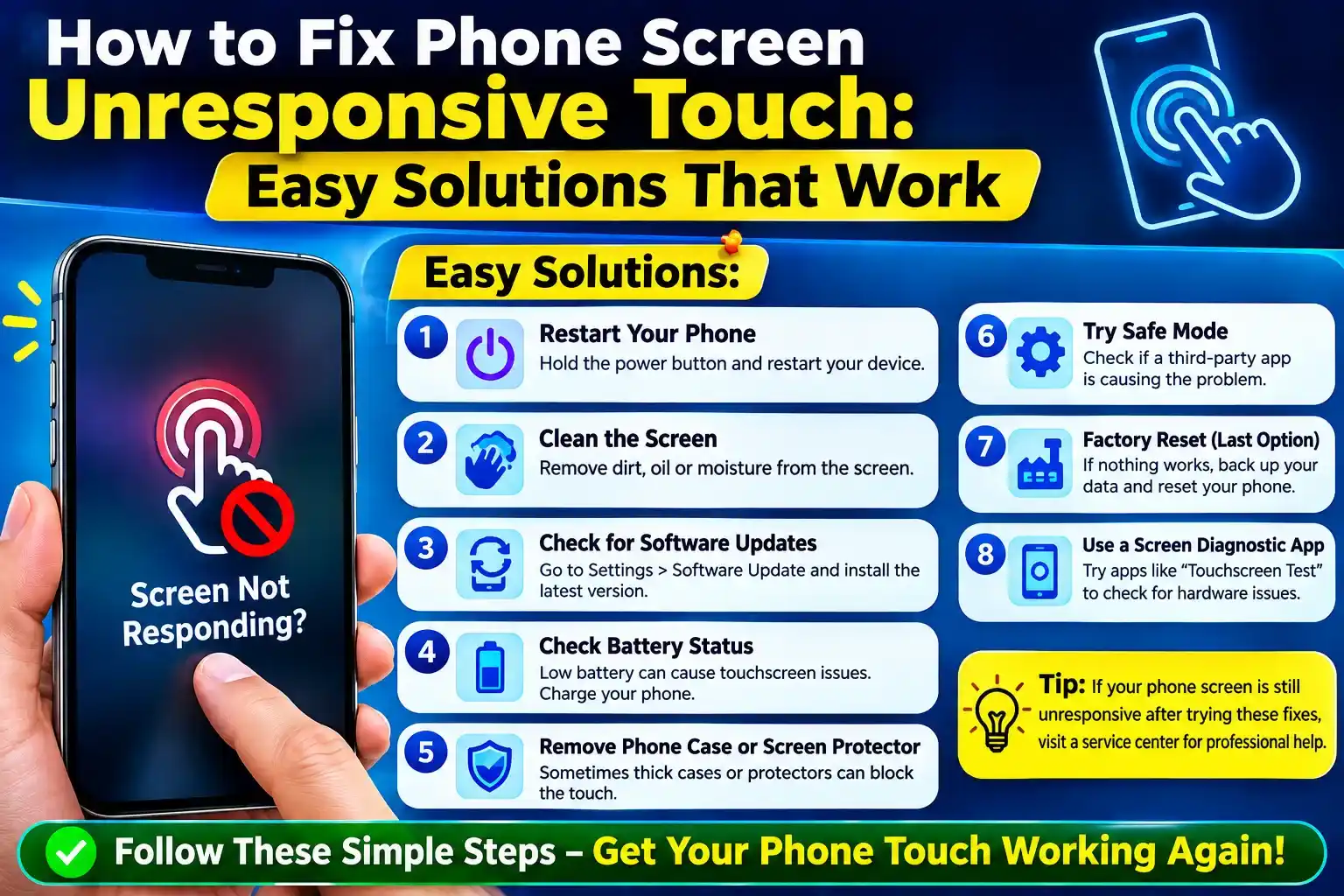
A phone with an unresponsive touch screen can be frustrating, especially when you need to make a call, reply to a message, or access an important app. The good news is that a frozen or unresponsive phone screen does not always mean your display is permanently damaged.
In many cases, you can fix the problem with a simple restart, cleaning the screen, removing a problematic screen protector, or checking for software issues. This guide explains how to fix phone screen unresponsive touch problems step by step, from quick solutions to situations where professional repair may be necessary.
Also Read:- How to Delete Your Telegram Account Permanently: Step-by-Step Guide?
Why Is My Phone Screen Not Responding to Touch?
It’s important to know what could be the issue before attempting a solution. Common reasons include:
- A temporary software glitch, or bug.
- A frozen or overloaded cell phone.
- Mirrors, dirt, oil or moisture on the screen.
- Faulty or improper screen protector.
- A damage or broken screen
- A faulty charging cable/power adapter.
- An out-of-date operating system
- A recently installed application that is causing conflicts.
- Overheating
- Damage to internal components or screen.Damage to the inner circuit or display.
If the screen turns unresponsive all at once with no visible damage, it can usually be assumed that this is a software issue.
How to Fix Phone Screen Unresponsive Touch
Try the following solutions in order. Start with the easiest method and move to the next one if the touch screen remains unresponsive.
1. Clean and Dry Your Phone Screen
The first thing you should do is clean the display.
Oil, dust, sweat, and moisture can interfere with touch sensitivity. Turn off the phone if possible and gently wipe the screen with a clean, soft, dry microfiber cloth.
Avoid using excessive liquid directly on the display. If your fingers are wet, dry them before trying the touchscreen again.
2. Remove Your Screen Protector and Phone Case
A thick, damaged, or incorrectly installed screen protector can sometimes affect touch sensitivity.
If your phone recently received a new screen protector and the touch problem started afterward, remove the protector temporarily and test the display.
You can also remove the case if it is pressing against the edges of the screen.
3. Restart Your Phone
A simple restart can fix temporary software glitches that make the touchscreen stop responding.
If your screen is still responding partially, use the normal power-off and restart option.
If the touchscreen is completely frozen, you may need to perform a force restart. The button combination depends on your phone model, so use the instructions provided by your phone manufacturer.
4. Force Restart the Phone
A force restart is particularly useful when the phone is frozen and you cannot interact with the screen.
The exact process varies between Android phones and iPhones. In general, it involves pressing a specific combination of physical buttons for several seconds.
A force restart does not normally erase your personal data. It simply forces the phone to reboot when the normal restart process is unavailable.
5. Disconnect the Charger and Accessories
If your touchscreen becomes unresponsive only while the phone is charging, the charger, cable, adapter, or electrical outlet could be contributing to the problem.
Unplug the phone and test the touchscreen again.
If the problem disappears, try a different high-quality charging cable and compatible power adapter.
6. Let an Overheated Phone Cool Down
Excessive heat can cause a phone to behave abnormally, including temporary touchscreen problems.
If your device feels unusually hot, stop using it and disconnect it from the charger. Let it cool naturally in a safe place.
Do not put a hot phone in a refrigerator or freezer because rapid temperature changes and condensation can cause additional damage.
Once the phone has returned to a normal temperature, check whether the touchscreen works again.
7. Check for Software Updates
An outdated operating system or software bug can sometimes affect touchscreen performance.
If you can access your phone, check for available system updates and install them from the device’s official software-update settings.
Keep enough storage space available for the update and make sure the battery is adequately charged.
8. Boot Android in Safe Mode
If you have an Android phone and the touchscreen started malfunctioning after installing an app, a third-party application could be responsible.
Android’s Safe Mode can help determine whether downloaded apps are causing the problem. The exact method for entering Safe Mode differs between manufacturers.
If the touchscreen works normally in Safe Mode, recently installed or updated apps are worth investigating.
9. Remove Recently Installed Apps
Think about when the problem started. Did you install a new app shortly before the touchscreen became unreliable?
If so, uninstall recently installed or suspicious apps and restart the phone.
Apps that display overlays, modify system behavior, or heavily use accessibility features may occasionally interfere with normal phone operation.
10. Check Whether Only One Part of the Screen Is Unresponsive
Try touching different areas of the display.
If the entire screen is not responding, the problem may be related to software, power, or a broader hardware issue.
If only a specific area fails to register touches, the display’s touch digitizer may be damaged. This is especially likely if the phone has been dropped, exposed to water, or suffered screen damage.
11. Back Up Your Data Before Resetting the Phone
If the touchscreen starts working occasionally, take advantage of the opportunity to back up your important data.
Photos, contacts, documents, messages, and other important files should be backed up before attempting more serious troubleshooting.
This is particularly important if you suspect the phone has a hardware problem.
12. Consider a Factory Reset as a Last Resort
A factory reset can potentially resolve serious software problems, but it should not be your first solution.
A factory reset removes personal information, installed apps, settings, and other data from the phone. Make sure you have a reliable backup before proceeding.
If the touchscreen remains completely unusable, you may also have difficulty completing the reset process, so professional assistance may be more practical.
Also Read:- 15 Best Apps to Cash Checks Instantly Without Ingo Money in 2026
What to Do If Your Phone Screen Is Cracked and Not Responding
If your phone has dropped and the screen no longer responds, it may be a hardware issue instead of software.
A broken screen can compromise the glass’s sensitivity to touch. In this case, it may be necessary to restart the phone or change its settings to resolve the problem.
If it is possible to still access the phone, backup your data immediately. Next, think about taking the device to a qualified repair shop for a check-up.
Do not press too hard on the screen repeatedly if damage is serious as it can aggravate the damage.
What If the Phone Screen Is Wet?
Water or moisture can interfere with touchscreen operation.
If the phone gets wet:
- Disconnect it from the charger.
- Turn it off if possible.
- Remove accessories and the case.
- Wipe the outside with a dry cloth.
- Allow it to dry naturally.
- Avoid charging it while moisture may still be present.
Do not rely on rice as a guaranteed method for drying a wet phone. If you suspect liquid has entered the device, professional inspection is safer.
When Should You Get Professional Phone Repair?
You should consider professional repair if:
- The touchscreen remains unresponsive after restarting.
- Only part of the screen responds to touch.
- The display is cracked or visibly damaged.
- The phone was recently dropped.
- The phone has been exposed to water or another liquid.
- Touch problems continue after software troubleshooting.
- The screen works intermittently and gets progressively worse.
- The device shows other hardware problems.
A technician can determine whether the issue involves the display assembly, digitizer, internal connection, battery, or another component.
How to Prevent Future Touchscreen Problems
You can reduce the chance of touchscreen problems by following a few simple habits:
- Keep your phone away from excessive heat and moisture.
- Use a good-quality screen protector.
- Avoid dropping or putting heavy pressure on the phone.
- Keep the operating system updated.
- Use compatible charging accessories.
- Keep sufficient free storage space.
- Avoid installing apps from unreliable sources.
- Back up important data regularly.
Final Thoughts
Knowing how to fix phone screen unresponsive touch problems can save you time and potentially avoid an unnecessary repair. Start with simple solutions such as cleaning the screen, removing the screen protector, disconnecting the charger, restarting the phone, and allowing an overheated device to cool.
If the problem continues, particularly after a drop, water exposure, or visible screen damage, it is more likely to be a hardware issue. In that case, back up your important data and consider professional repair rather than repeatedly trying software fixes.
A careful step-by-step approach is the best way to identify whether your phone has a temporary software problem or a touchscreen that needs repair.
Frequently Asked Questions
A phone screen may stop responding because of a temporary software freeze, moisture, dirt, a faulty screen protector, overheating, physical damage, or a damaged touchscreen digitizer.
Start by cleaning and drying the screen, removing the case or screen protector, disconnecting the charger, and allowing an overheated phone to cool down. If these steps do not work, a force restart may be necessary.
Intermittent touch problems can be caused by software glitches, overheating, charging accessories, moisture, or failing display hardware. If the issue keeps returning, professional diagnosis may be needed.
Yes. A poorly fitted, damaged, or unusually thick screen protector can sometimes reduce touchscreen responsiveness. Removing it temporarily can help determine whether it is causing the problem.
Test different areas of the display. If one section consistently fails to respond, especially after a drop or impact, the touchscreen digitizer or display assembly may be damaged.
It can if the problem is caused by a software bug. However, software updates cannot repair physical damage to the display or touchscreen hardware.
A factory reset should generally be a last resort because it erases personal data and does not fix physical screen damage. Back up your data first whenever possible.
First, check for visible cracks or other damage and try a force restart. If the screen remains unresponsive after the drop, the display or digitizer may have been damaged and should be inspected by a repair professional.