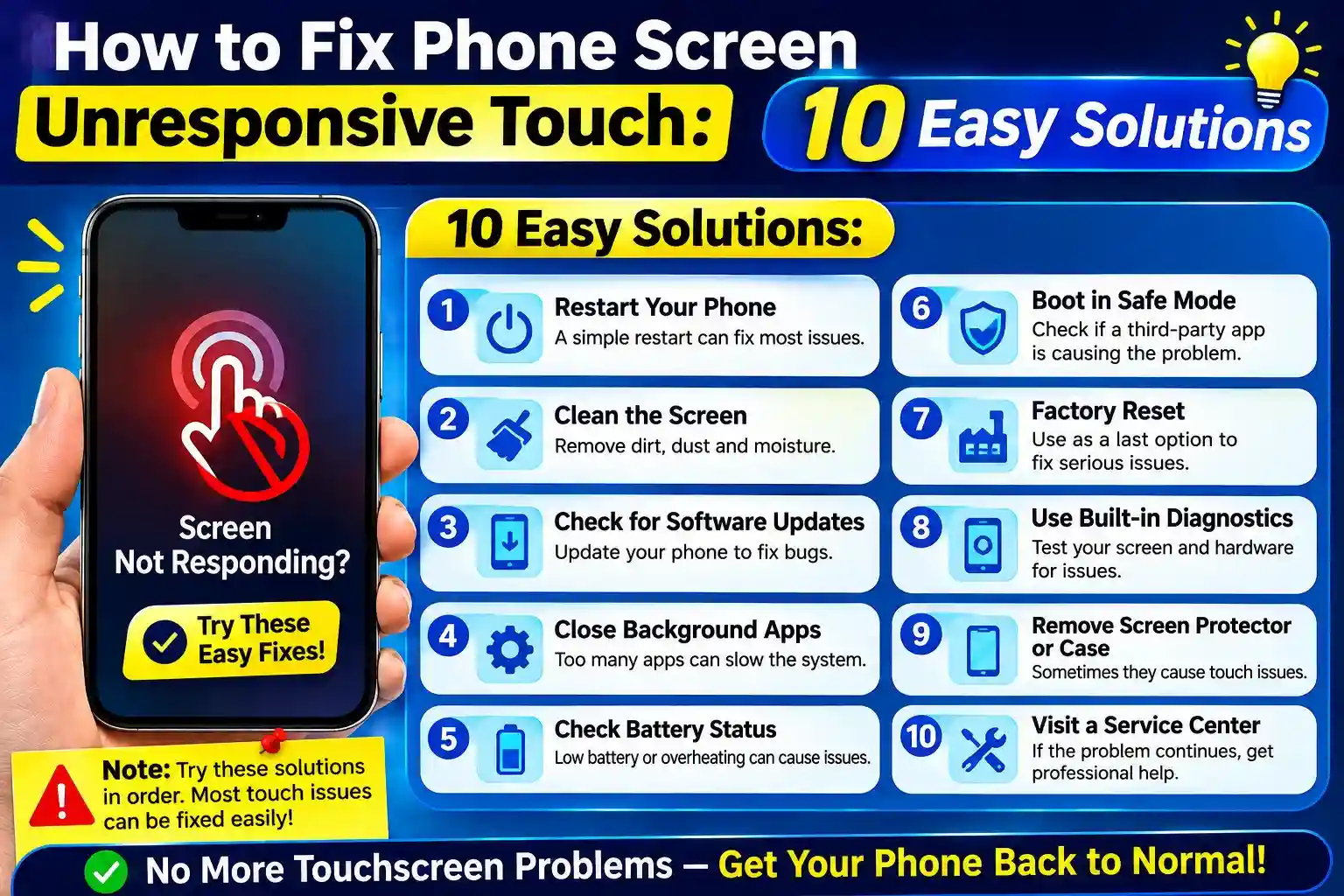
Is your phone screen not responding when you tap, swipe, or try to open an app? Don’t panic just yet. A phone touchscreen can suddenly become unresponsive for many reasons, and it doesn’t always mean that your display is permanently damaged.
Sometimes, the problem is as simple as a dirty or wet screen, a faulty screen protector, an overheating phone, or a temporary software glitch. In other cases, the touchscreen may stop working after a drop, physical damage, or exposure to water.
If you’re wondering how to fix phone screen unresponsive touch, you’re in the right place. Before taking your phone to a repair shop or paying for a screen replacement, there are several simple troubleshooting steps you can try at home.
In this guide, we’ll explain the most common reasons behind an unresponsive phone touchscreen and walk you through practical solutions step by step. Whether you’re using an Android phone or an iPhone, these fixes can help you determine whether the problem is software-related or if your device may need professional repair.
Also Read:- 15 Best Apps to Cash Checks Instantly Without Ingo Money in 2026
Why Is My Phone Touchscreen Not Responding?
There isn’t always one single reason for a touchscreen problem. Common causes include:
- A temporary software glitch
- A dirty or wet screen
- A damaged screen protector
- A faulty charging cable or adapter
- An outdated operating system
- A recently installed problematic app
- Overheating
- Physical damage from a drop or impact
- Water or liquid entering the phone
- A damaged touchscreen digitizer
If only part of the screen isn’t responding, especially after the phone has been dropped, the problem is more likely to be hardware-related.
How to Fix an Unresponsive Phone Touchscreen
Try these solutions in order, starting with the easiest ones.
1. Clean and Dry the Screen
It sounds simple, but dirt, oil, and moisture can interfere with touch sensitivity.
Turn off the phone if possible and gently clean the display with a soft, dry microfiber cloth. Make sure your fingers are also clean and dry before testing the touchscreen again.
Avoid spraying cleaning liquid directly onto the phone.
2. Remove Your Screen Protector and Case
A cracked, poorly fitted, or low-quality screen protector can sometimes interfere with touchscreen responsiveness.
Remove the case and temporarily remove the screen protector if you’re comfortable doing so. Then test the screen.
If the touchscreen starts working normally, the accessory may have been causing the problem.
3. Restart Your Phone
Restarting could resolve temporary software issues that may cause touch sensitivity problems.
If the touchscreen is functional enough to get to the power menu, turn the phone back on as normal.
If the screen is totally frozen, use the force restart button combination of the device. This will vary depending on the phone you have, so if you don’t know, refer to the manufacturer’s instructions.
If you restart the device normally, your photos, contacts, apps, and other personal information will not be removed.
4. Unplug the Charger and Accessories
The charger, charger cable, or power source might be part of the issue if the touchscreen freezes up during the charging process.
Unplug the phone and retest with the touchscreen.
If there is no problem, use a different, compatible charging cable and power adapter.
5. Let an Overheated Phone Cool Down
Phones can become less responsive when they get extremely hot.
If your device feels unusually warm, stop using it and disconnect it from the charger. Move it to a cool, dry location and allow it to return to a normal temperature.
Avoid putting a hot phone in a refrigerator or freezer because sudden temperature changes and condensation can cause additional damage.
6. Update Your Phone’s Software
Sometimes touchscreen problems are related to software bugs.
If you can still navigate the phone, check for available system updates and install the latest compatible version.
Keeping your operating system updated can improve stability and fix known software issues.
7. Check Recently Installed Apps
If the touchscreen problem started after installing a new application, that app could potentially be causing system instability.
On supported Android devices, you can try Safe Mode, which temporarily disables third-party apps.
If the touchscreen works normally in Safe Mode, recently installed apps are worth investigating. Remove suspicious or recently installed apps one at a time and check whether the problem disappears.
8. Try the Screen in Different Areas
Test different parts of the display.
For example, try tapping:
- The top of the screen
- The middle
- The bottom
- The corners
- The keyboard
- Different app icons
If only one specific area consistently fails to respond, the touchscreen hardware may be damaged.
This is especially important if the problem appeared after a fall, impact, or liquid exposure.
9. Back Up Your Data
If your touchscreen works intermittently, don’t wait until it stops working completely to protect your important files.
Back up your photos, videos, contacts, documents, and other essential data as soon as possible.
This is particularly important if you suspect the screen has physical damage.
10. Consider a Factory Reset as a Last Resort
If after performing basic troubleshooting measures you have found that the issue is related to software, sometimes a factory reset of the device could help.
But a factory reset erases personal information and reverts to the original software condition. Make sure your important information is backed up first.
Don’t reset blindly if the touchscreen does not function sufficiently to use the device. Instead, think about using the services of someone else.
If your phone screen is unresponsive, here’s what to do.
Also Read:- Types of Firewalls in Computer Networks and How to Choose the Right One?
Don’t worry if nothing happens at all if you touch the display.
Try to force restart your device with the necessary button combination. If this doesn’t resolve the issue, plug the phone into a trusted charger for a period of time and repeat.
If the phone is already on and the touchscreen is totally unresponsive, it may be a problem with the display assembly, digitizer, internal connection, or other hardware.
After that, it is typically best to rely on a professional diagnosis.
What If the Touchscreen Stopped Working After a Drop?
A drop can damage more than the visible glass.
Even if the display looks fine, the internal touchscreen digitizer or its connection may have been damaged. Signs of possible hardware damage include:
- Only part of the screen responds
- Touches register in the wrong location
- The screen works intermittently
- The display has lines or black spots
- The touchscreen stopped working immediately after the impact
If the problem started directly after a significant drop, software troubleshooting may not solve it. A repair technician can inspect the device and determine whether the screen assembly needs replacement.
What If Water Got Into the Phone?
Liquid exposure can cause touchscreen problems and potentially damage internal components.
If your phone gets wet, avoid repeatedly pressing buttons or connecting it to a charger. Wipe the exterior and follow the manufacturer’s recommended liquid-damage procedure.
If the touchscreen becomes unresponsive after liquid exposure, professional inspection is recommended.
Do not rely on household drying tricks as a guaranteed repair method.
When Should You Replace the Phone Screen?
A screen replacement may be necessary when:
- The display is cracked or badly damaged
- Touch doesn’t work in specific areas
- The touchscreen remains unresponsive after restarting
- The problem started after a drop
- The phone suffered liquid damage
- The display shows abnormal lines, flickering, or black areas
- A repair professional identifies a damaged digitizer or display assembly
Before paying for a replacement, ask a reputable technician to diagnose the problem. Sometimes the issue is caused by something other than the screen itself.
How to Prevent Future Touchscreen Problems
A few simple habits can help keep your phone’s touchscreen working properly:
- Use a quality case and screen protector.
- Keep the display clean and dry.
- Avoid exposing the phone to extreme heat.
- Use compatible charging accessories.
- Keep your phone’s software updated.
- Avoid placing heavy objects on the phone.
- Protect the device from drops and impacts.
- Keep liquids away from the phone whenever possible.
Final Thoughts
An unresponsive phone touchscreen doesn’t always mean your phone is permanently damaged. Start with the basics: clean and dry the display, remove accessories, disconnect the charger, restart the phone, and let an overheated device cool down.
If the touchscreen continues to malfunction, pay attention to when the problem started and whether the entire screen or only certain areas are affected. Those clues can help determine whether you’re dealing with a software issue or damaged hardware.
And if your phone has suffered a serious drop or liquid exposure, backing up your data and getting professional help sooner rather than later can save you from bigger problems.
Frequently Asked Questions
A phone touchscreen may stop responding because of a software glitch, dirt or moisture on the screen, a damaged screen protector, overheating, charging accessories, or physical damage. Restarting the phone and cleaning the display are good first steps.
Start by cleaning and drying the screen, removing the case or screen protector, disconnecting the charger, restarting the phone, and checking for software updates. If the issue continues, the problem may require professional diagnosis.
If only a specific section of the screen doesn’t respond, the touchscreen digitizer may be damaged. This can happen after a drop, pressure, or liquid exposure.
Yes. If the problem is caused by a temporary software glitch, a normal restart or force restart can restore touchscreen functionality.
Yes. A damaged, poorly installed, or incompatible screen protector can sometimes reduce touchscreen responsiveness. Removing it temporarily can help determine whether it is causing the problem.
A faulty or incompatible charger, cable, or power source can sometimes cause unusual touchscreen behavior. Disconnect the charger and test the screen. If the issue disappears, try a reliable compatible charging setup.
A factory reset should be a last resort because it erases personal data. Back up your important information first, and consider professional assistance if you cannot properly operate the phone.
No. Software glitches, moisture, dirt, accessories, and overheating can all cause temporary touchscreen problems. However, persistent problems—especially after physical or liquid damage—may indicate a hardware fault.